
Rocket.Chat in Slack Color
By Vladimir Mikhalev · Solutions Architect · Docker Captain · CNCF Ambassador · IBM Champion
This article is for those looking for a detailed and clear guide on how to make Rocket.Chat in Slack Color.
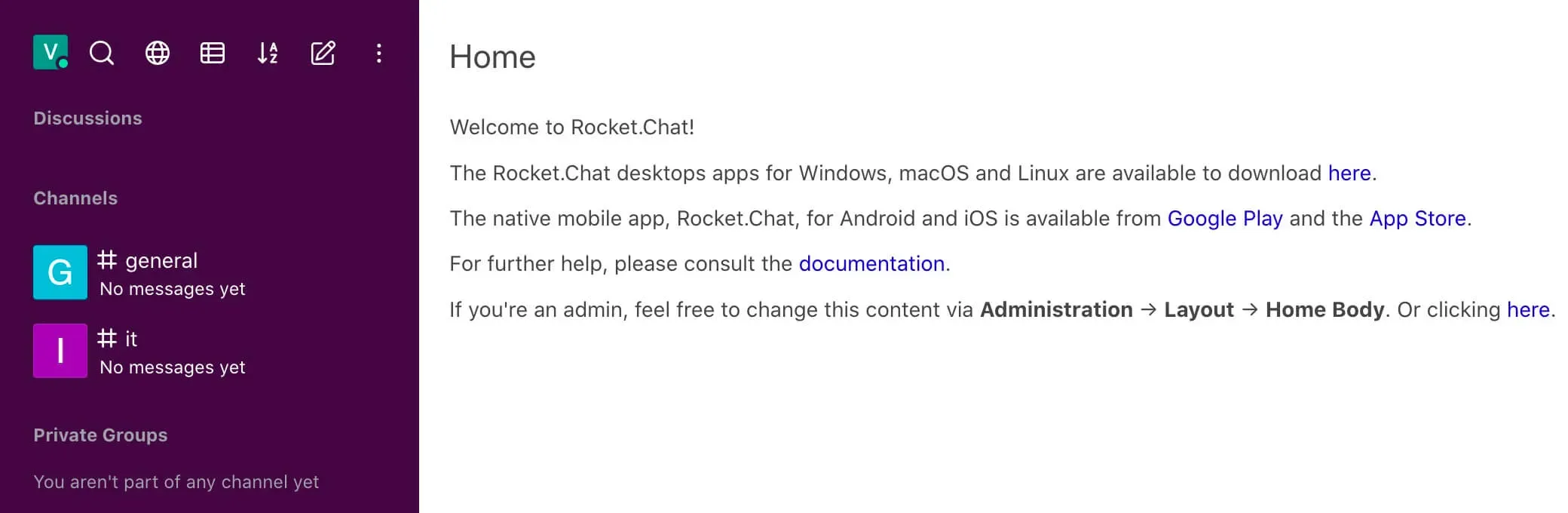
Rocket.Chat is an open-source fully customizable communications platform developed in JavaScript for organizations with high standards of data protection.
NOTEFor details on installing Rocket.Chat on Ubuntu Server, read my guide: Install Rocket.Chat on Ubuntu Server.
IMPORTANTYou need to have administrator rights in Rocket.Chat to change the color palette.
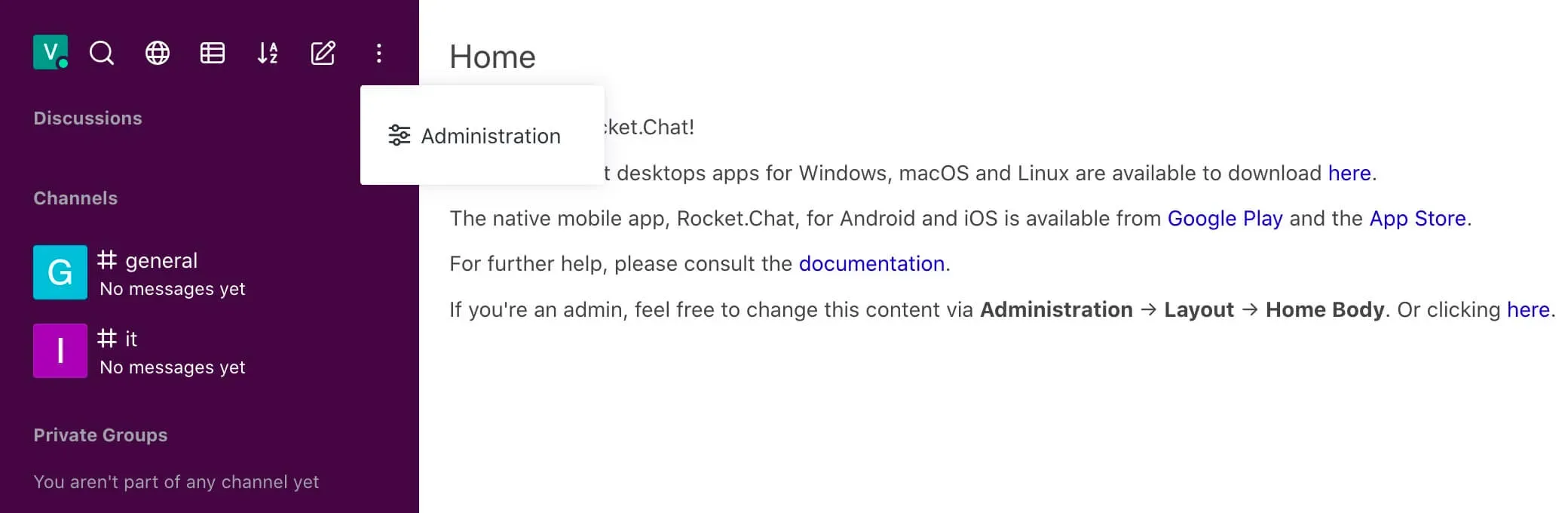
Click on the icon with three dots in the upper left corner of the screen and select “Administration”.
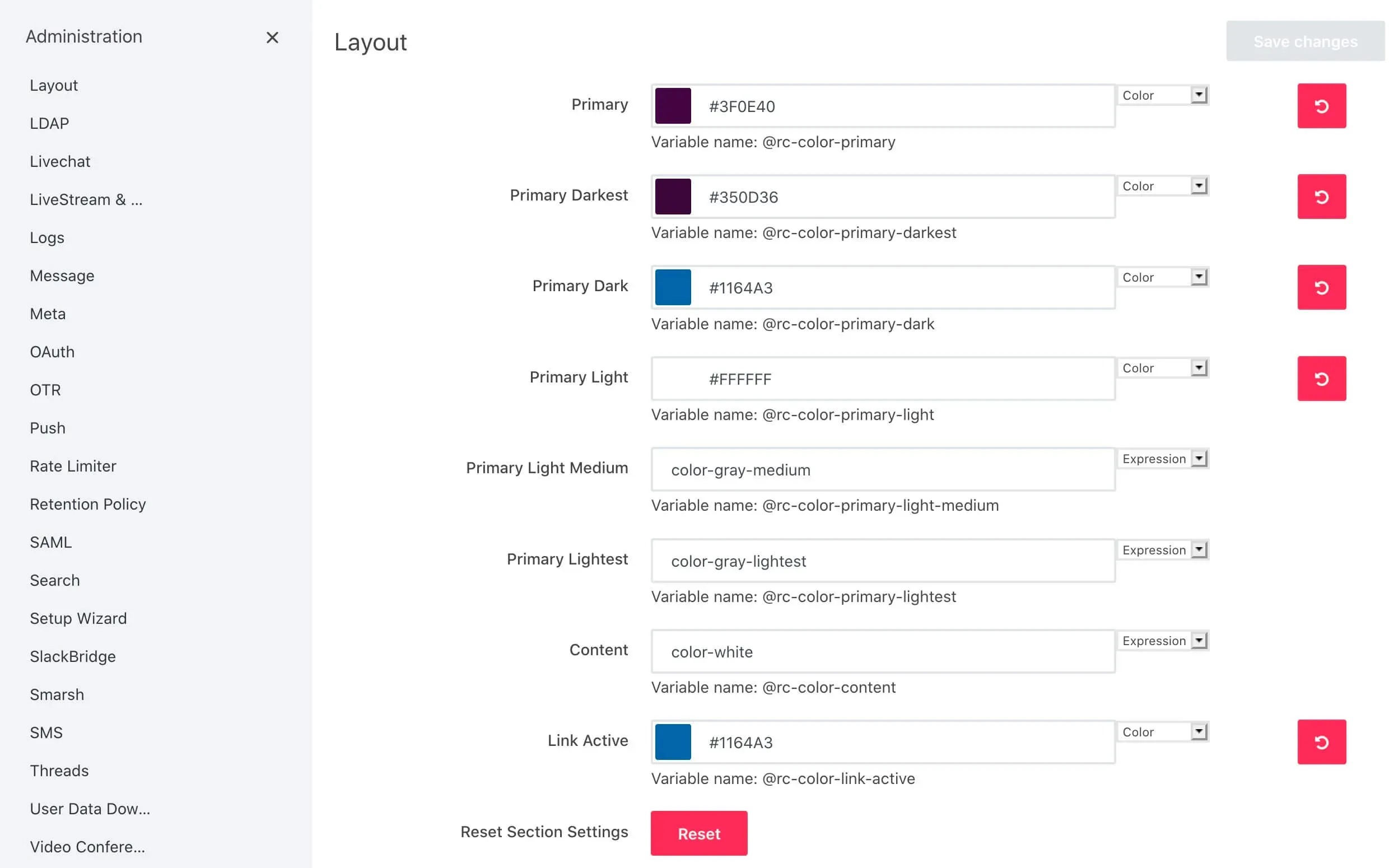
Next, find the “Layout” section and open the “Colors” subsection.
Change the colors to the ones below:
- Primary: #3F0E40
- Primary Darkest: #350D36
- Primary Dark: #1164A3
- Primary Light: #FFFFFF
- Link Active: #1164A3
Click on the “Save Changes” button.
Rocket.Chat will now look more like Slack.
To update the color palette in the web interface and in the Rocket.Chat client for Windows and Linux, use the keyboard shortcut “Ctrl” and “R”.
To update the color palette in the Rocket.Chat client for macOS, you must use the keyboard shortcut “Command” and “R”.